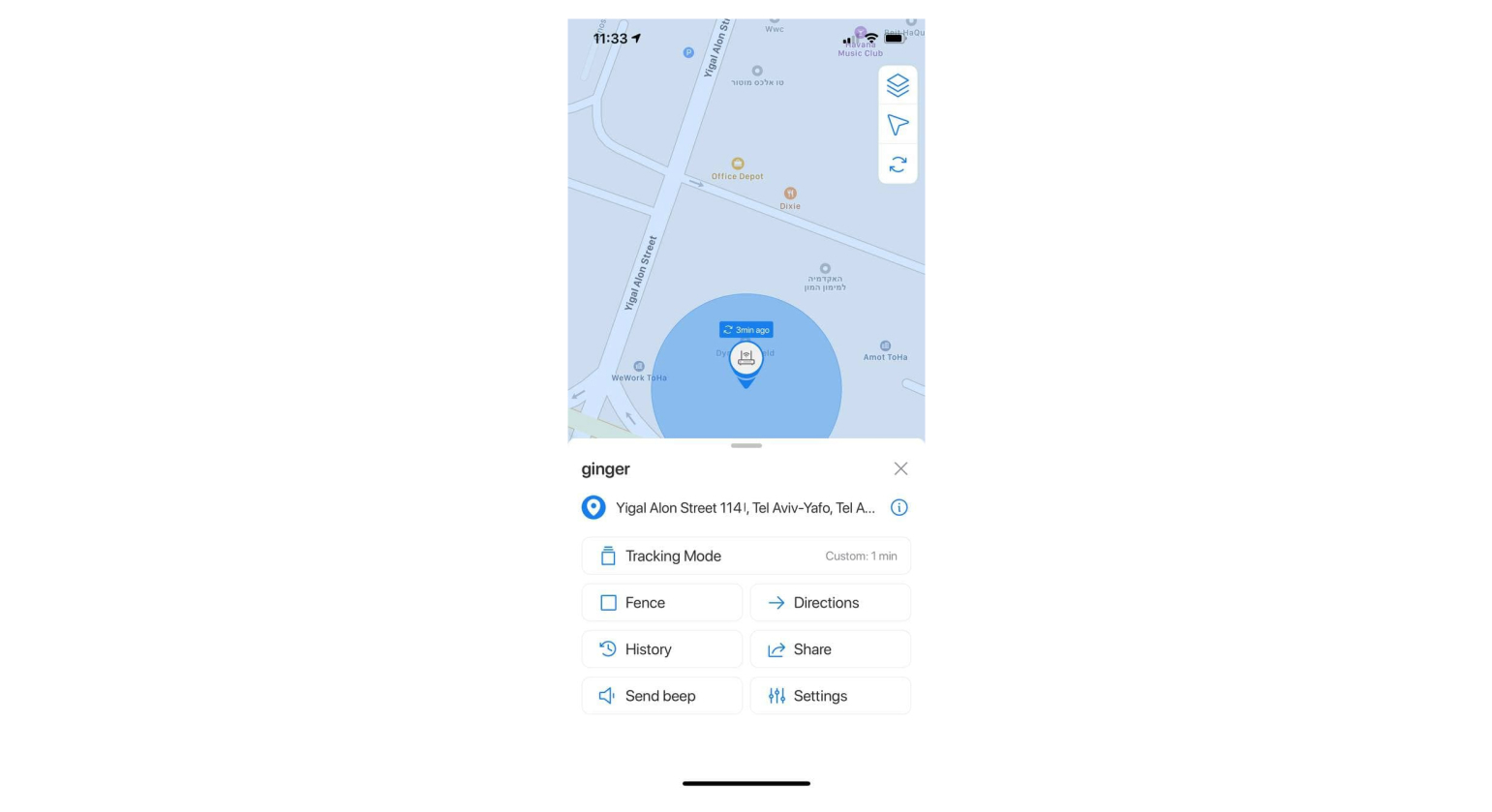
To start working with your trackers using your mobile device, go to the App Store or Google Play(depending on the OS of your device) and download the Trackimo + app.
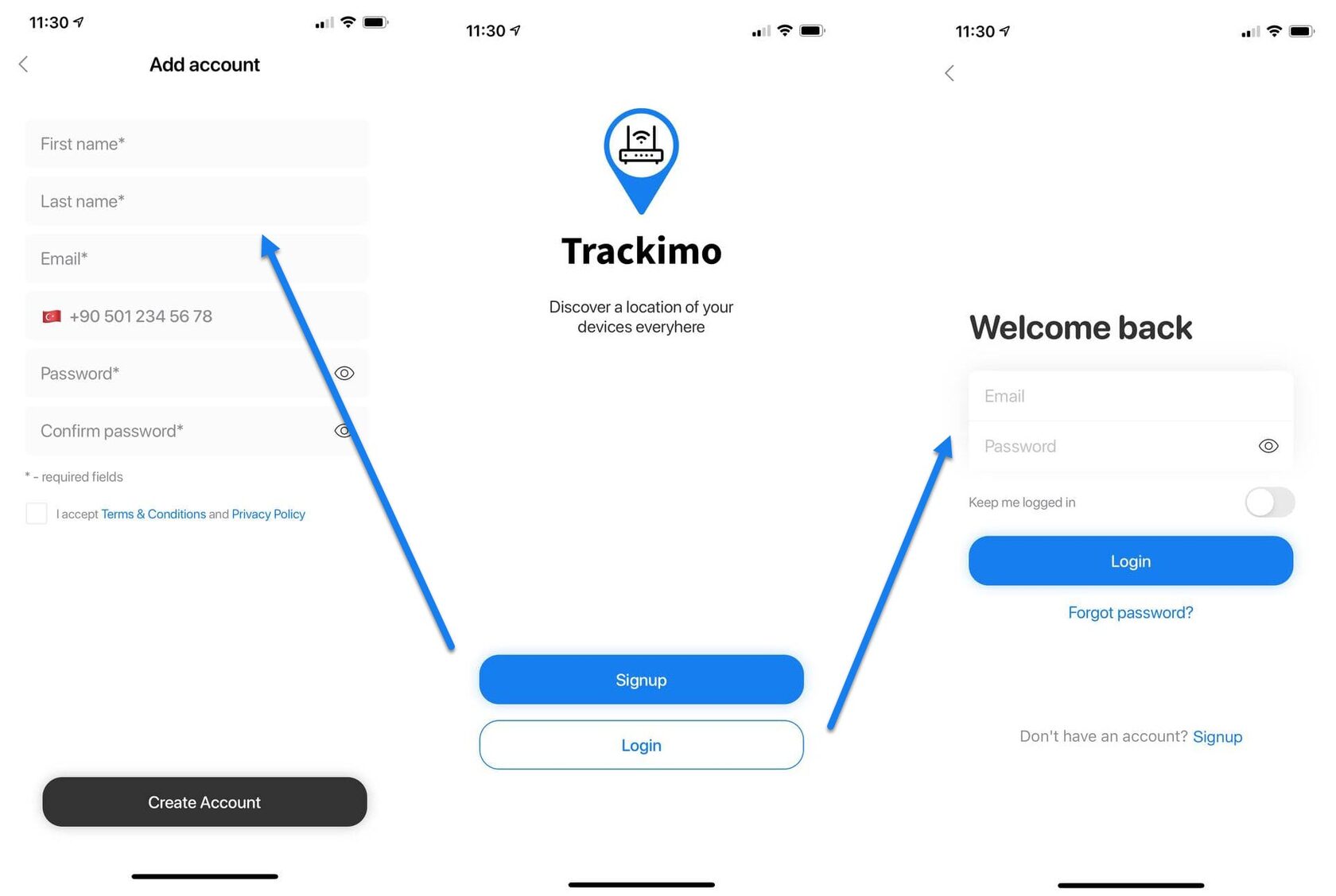
As you download the app and open it for the first time you can either Login to the existing account or create a new one:
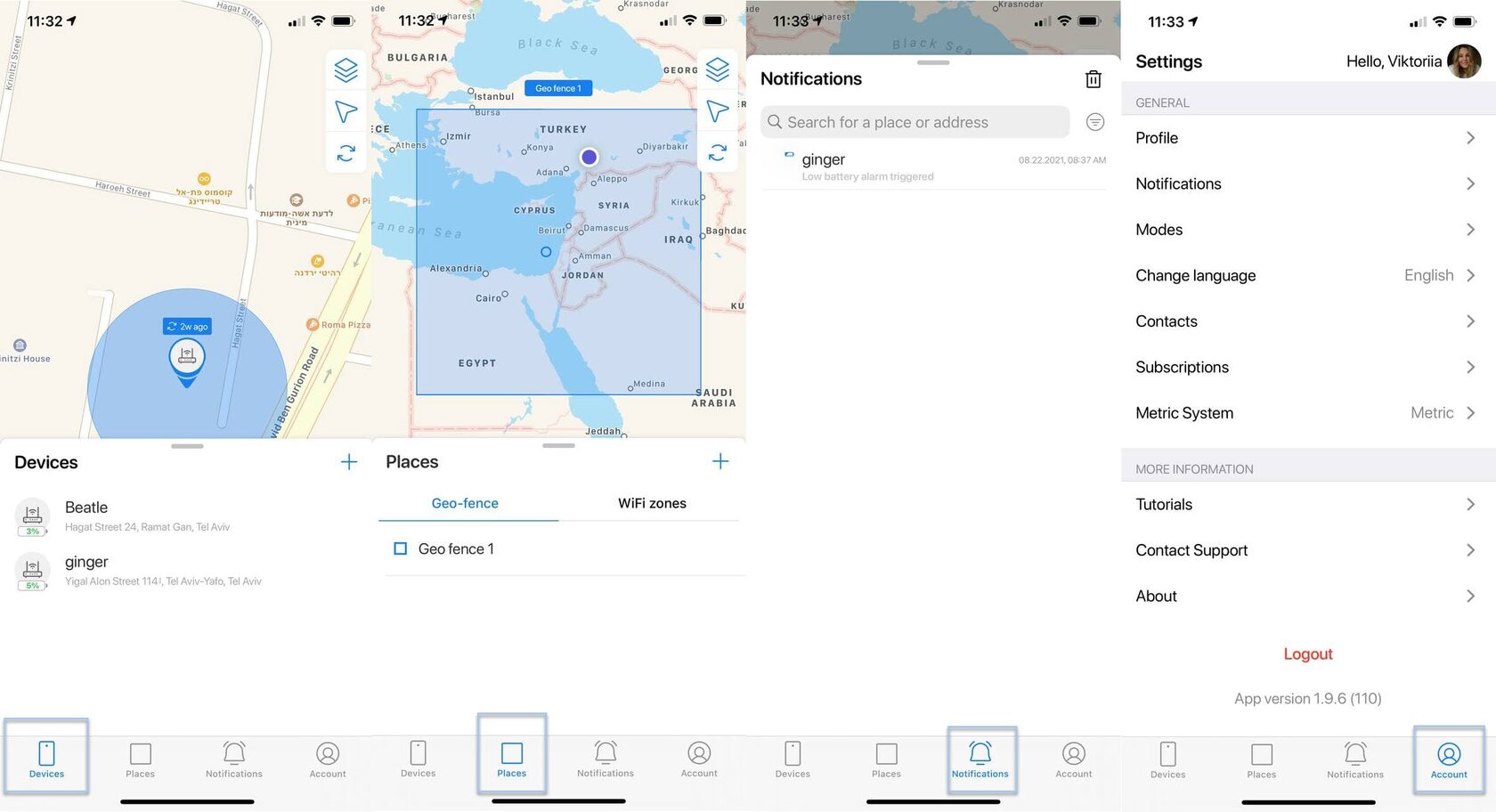
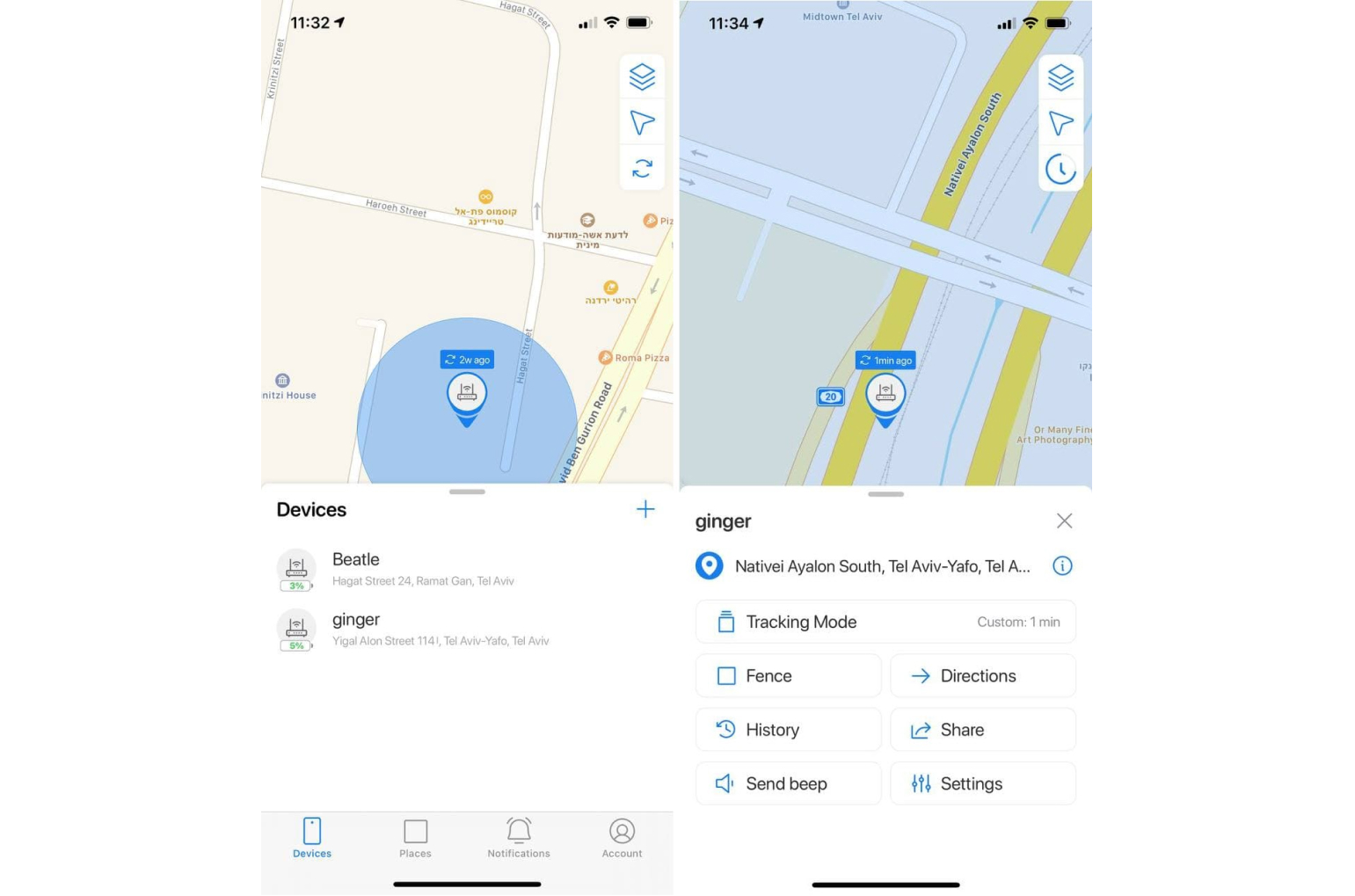
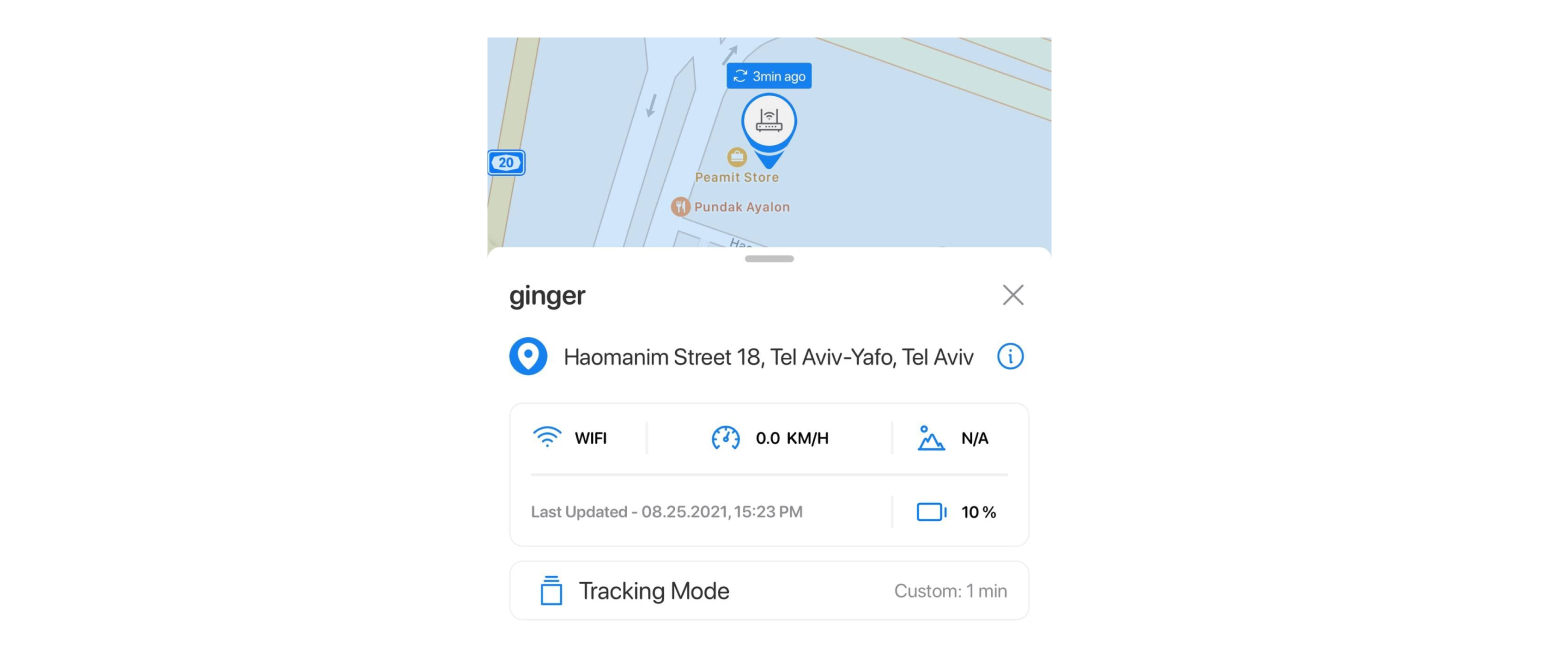
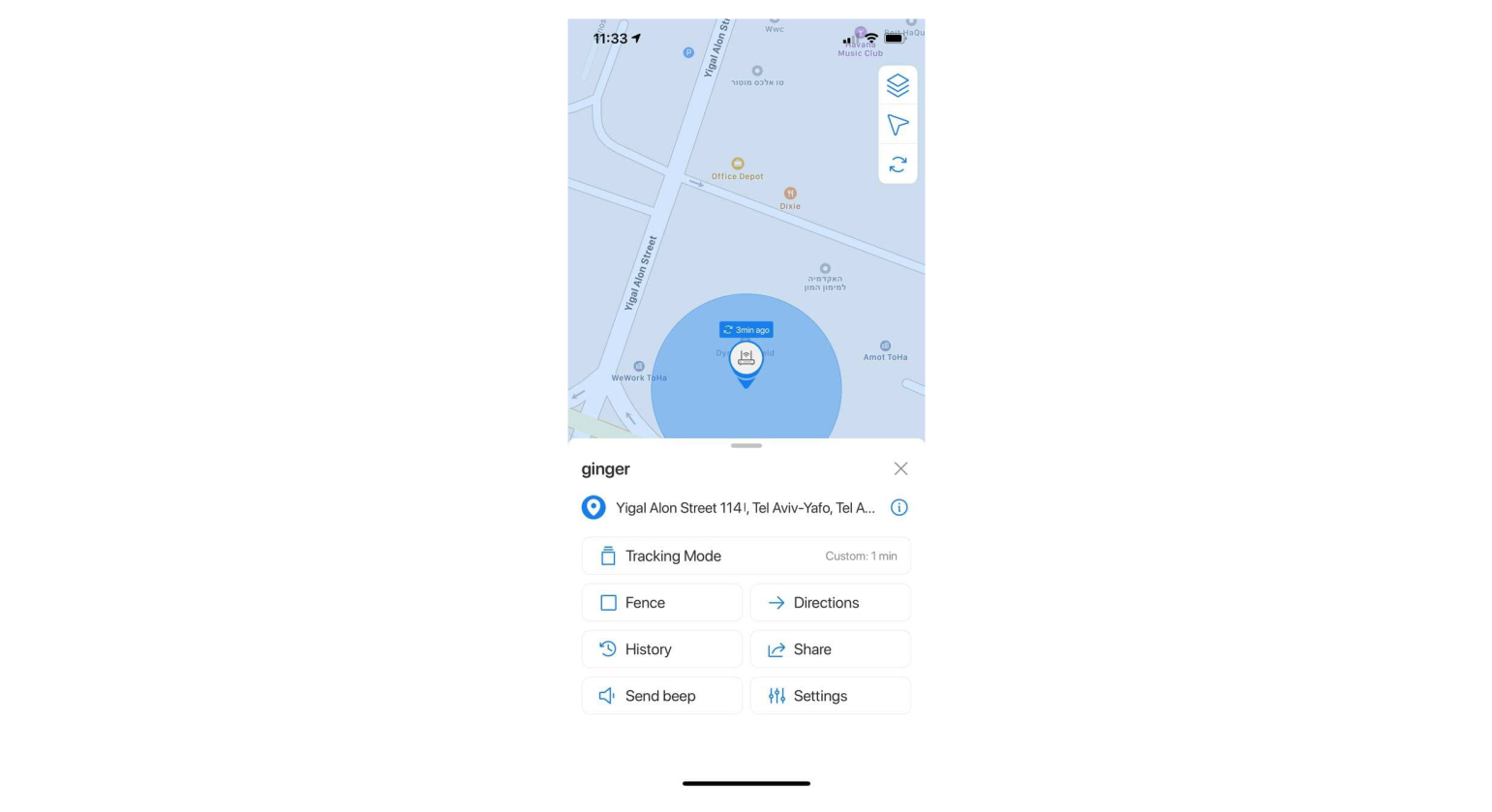
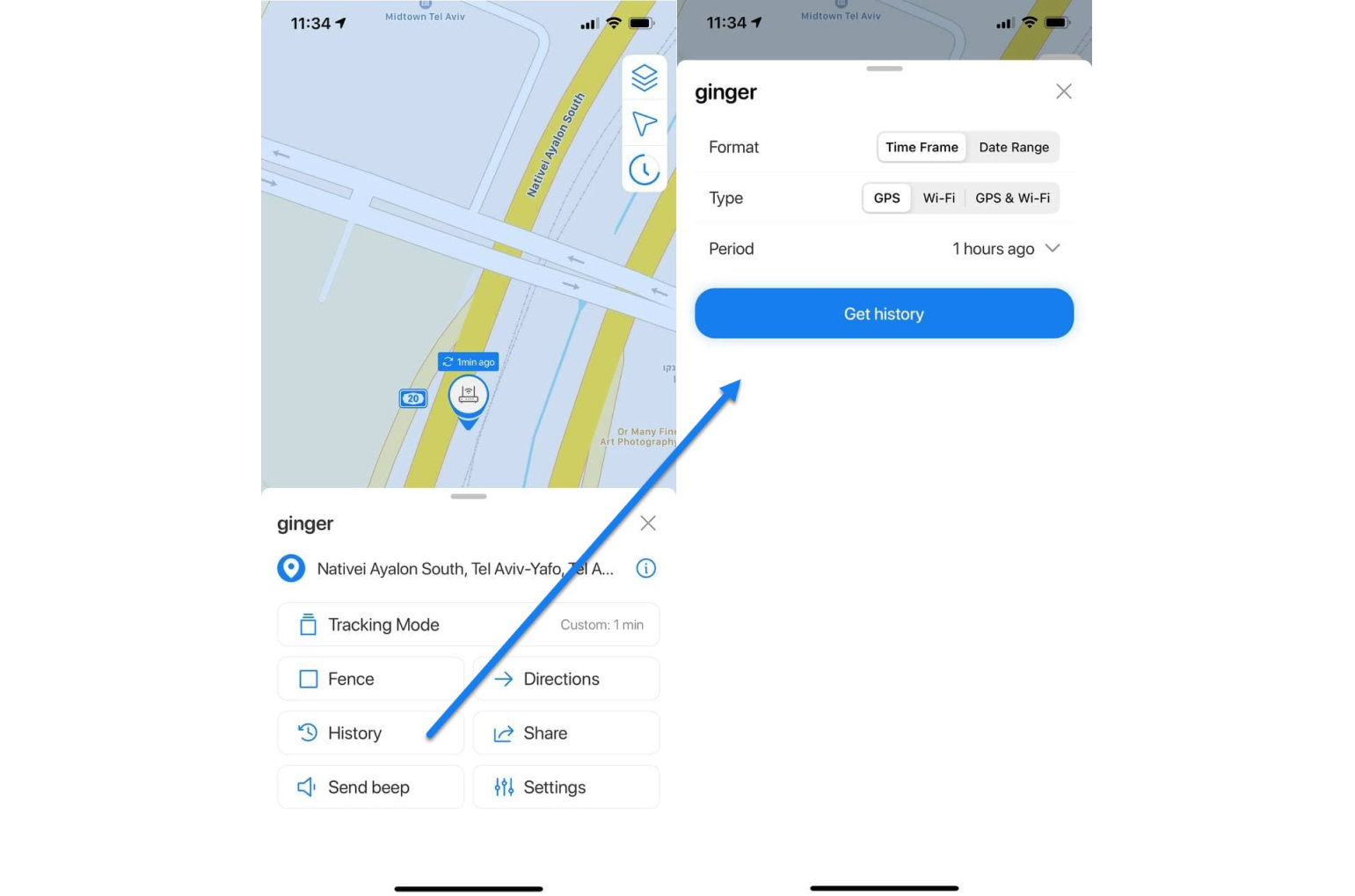
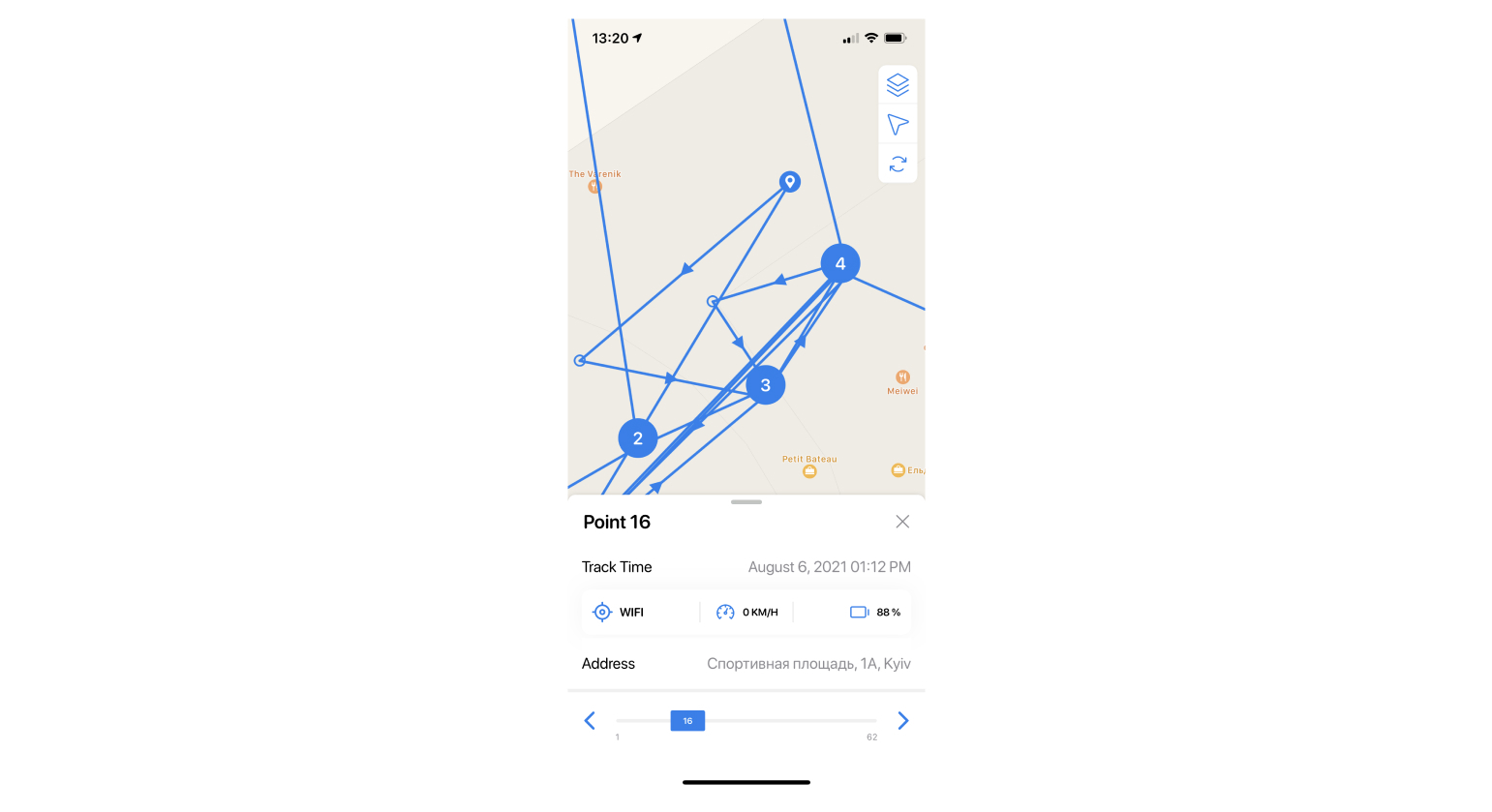
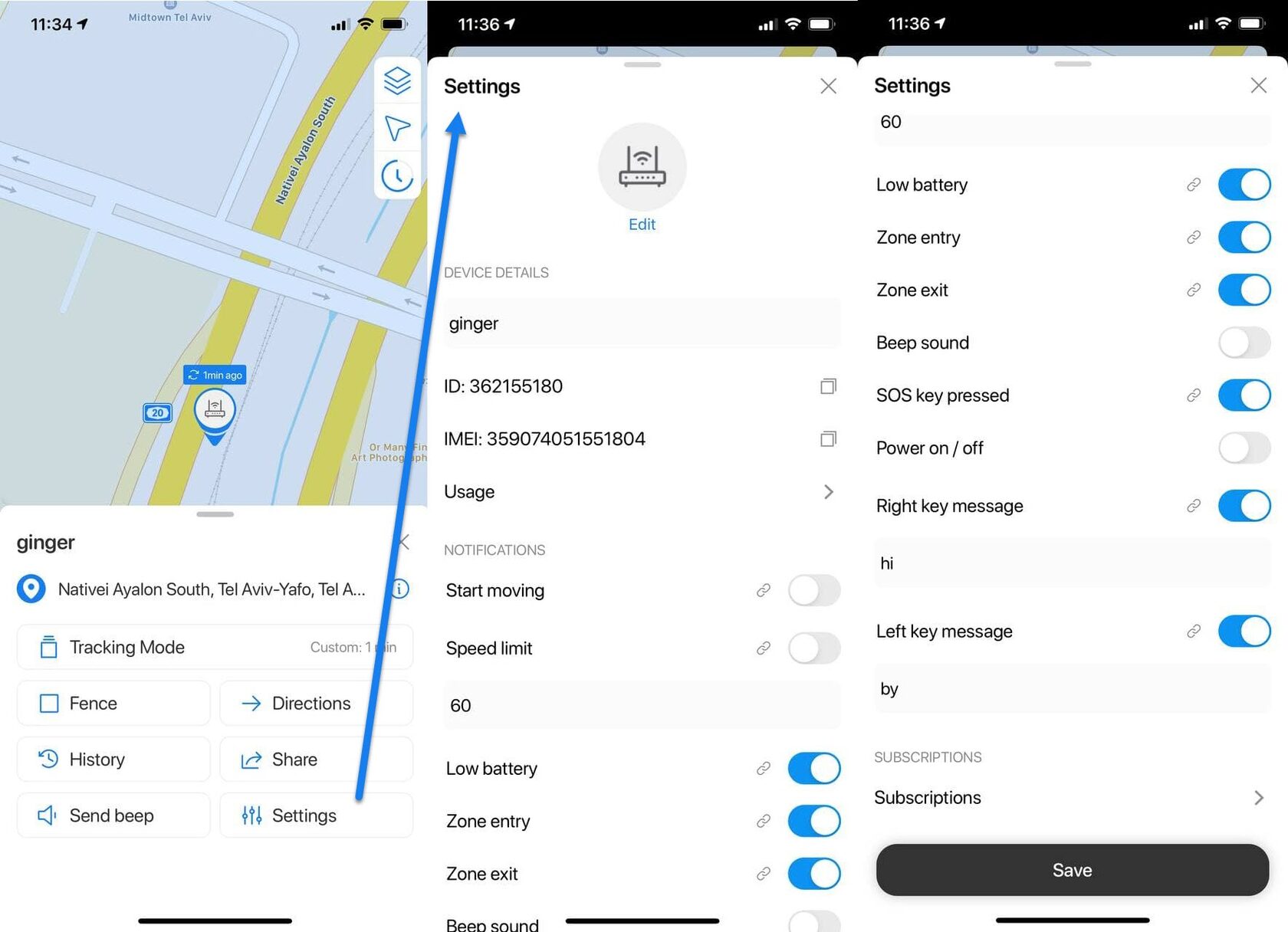
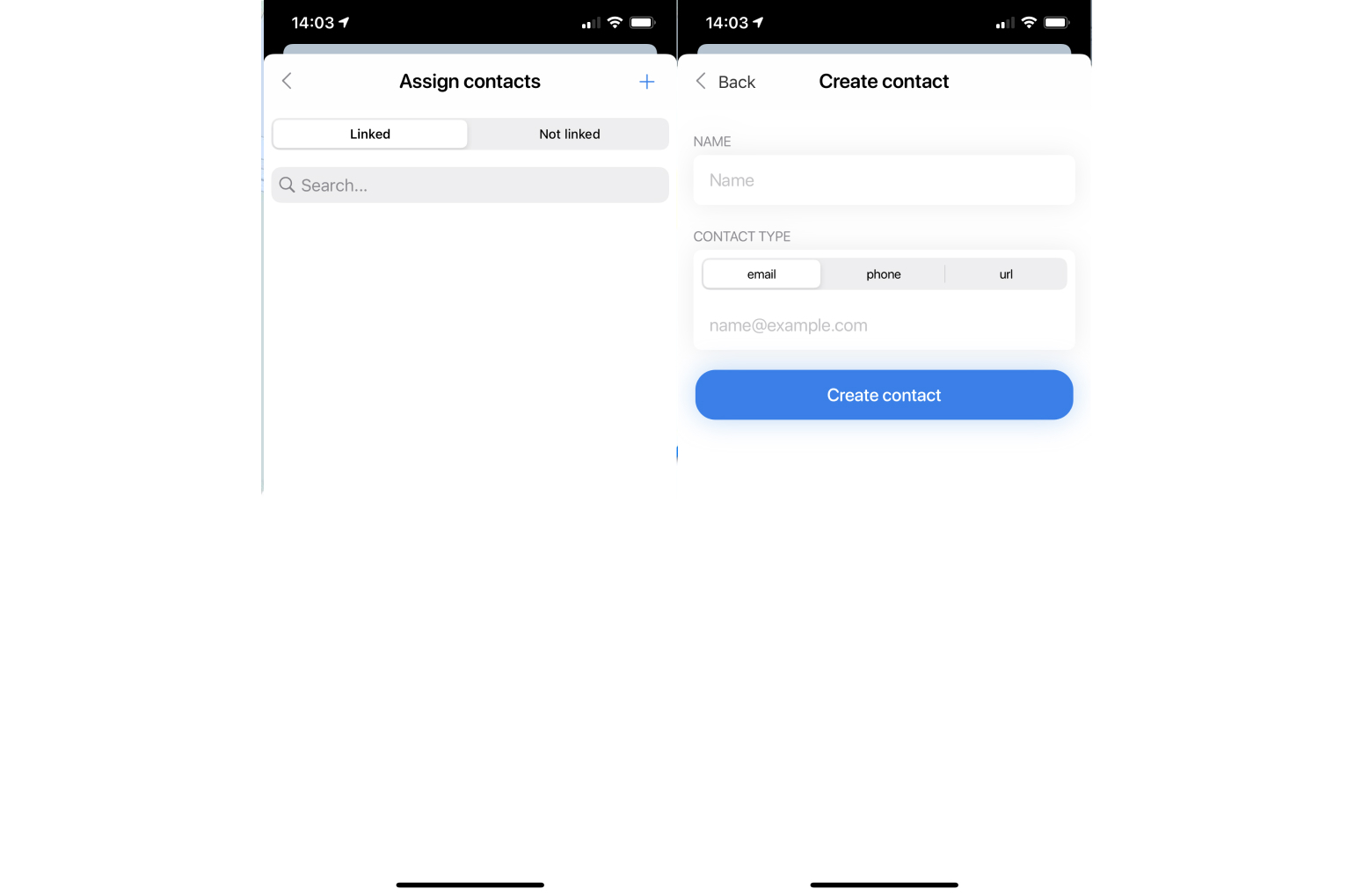
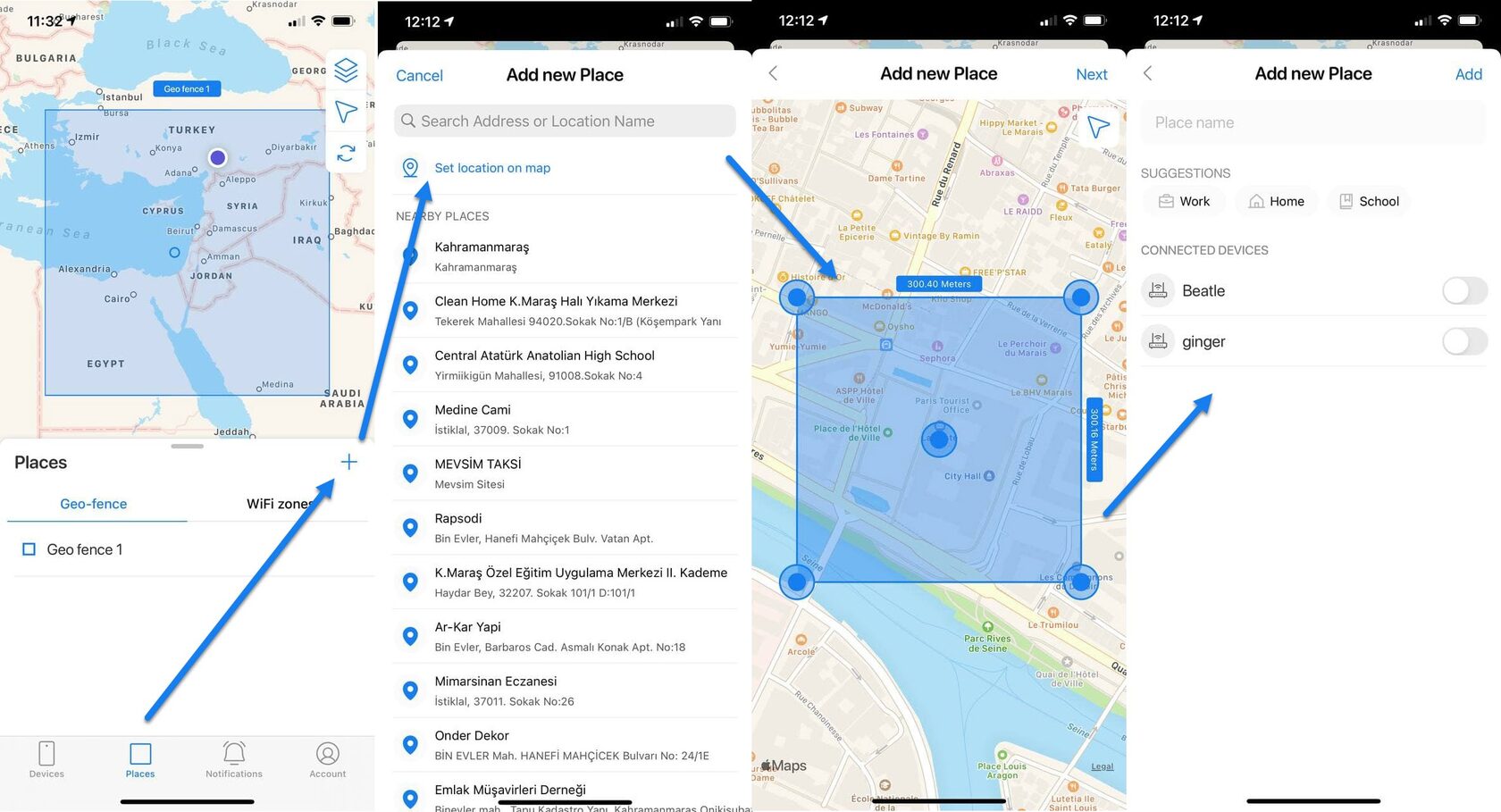 To create a fence from the device's information tab:
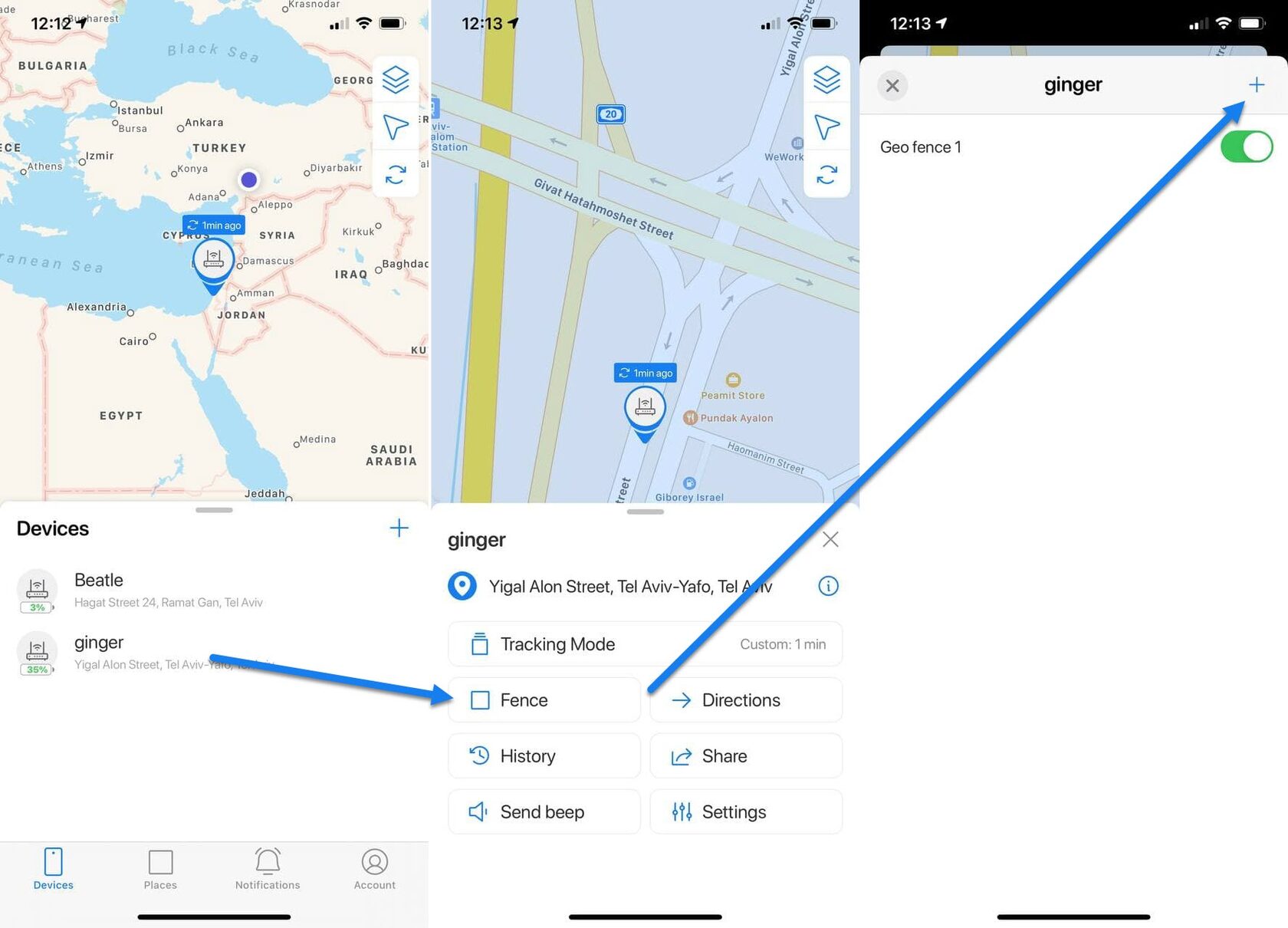
1. Tap on the device you want to create a fence for in the Devices tab;
2. Tap on the Fence button;
3. Tap on plus icon in the top right corner;
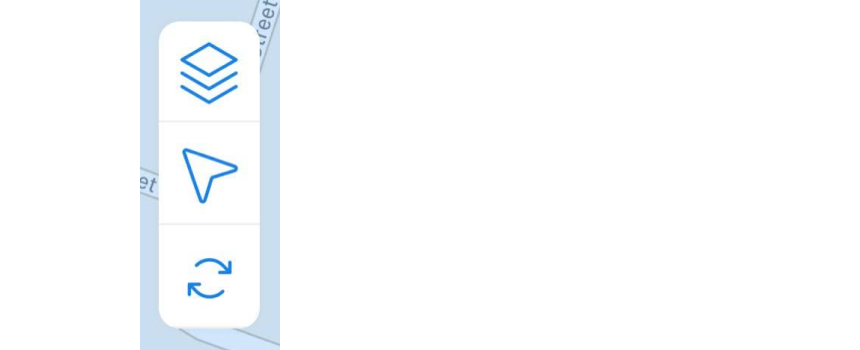
4. Search for an address or set the location on a map;
5. Adjust the fence perimeter by moving it on the map;
6. Name the fence and enable the toggle near the device's names you want this fence to be applicable to.
To create a fence from the device's information tab:
1. Tap on the device you want to create a fence for in the Devices tab;
2. Tap on the Fence button;
3. Tap on plus icon in the top right corner;
4. Search for an address or set the location on a map;
5. Adjust the fence perimeter by moving it on the map;
6. Name the fence and enable the toggle near the device's names you want this fence to be applicable to.
 Editing a GeoFence:
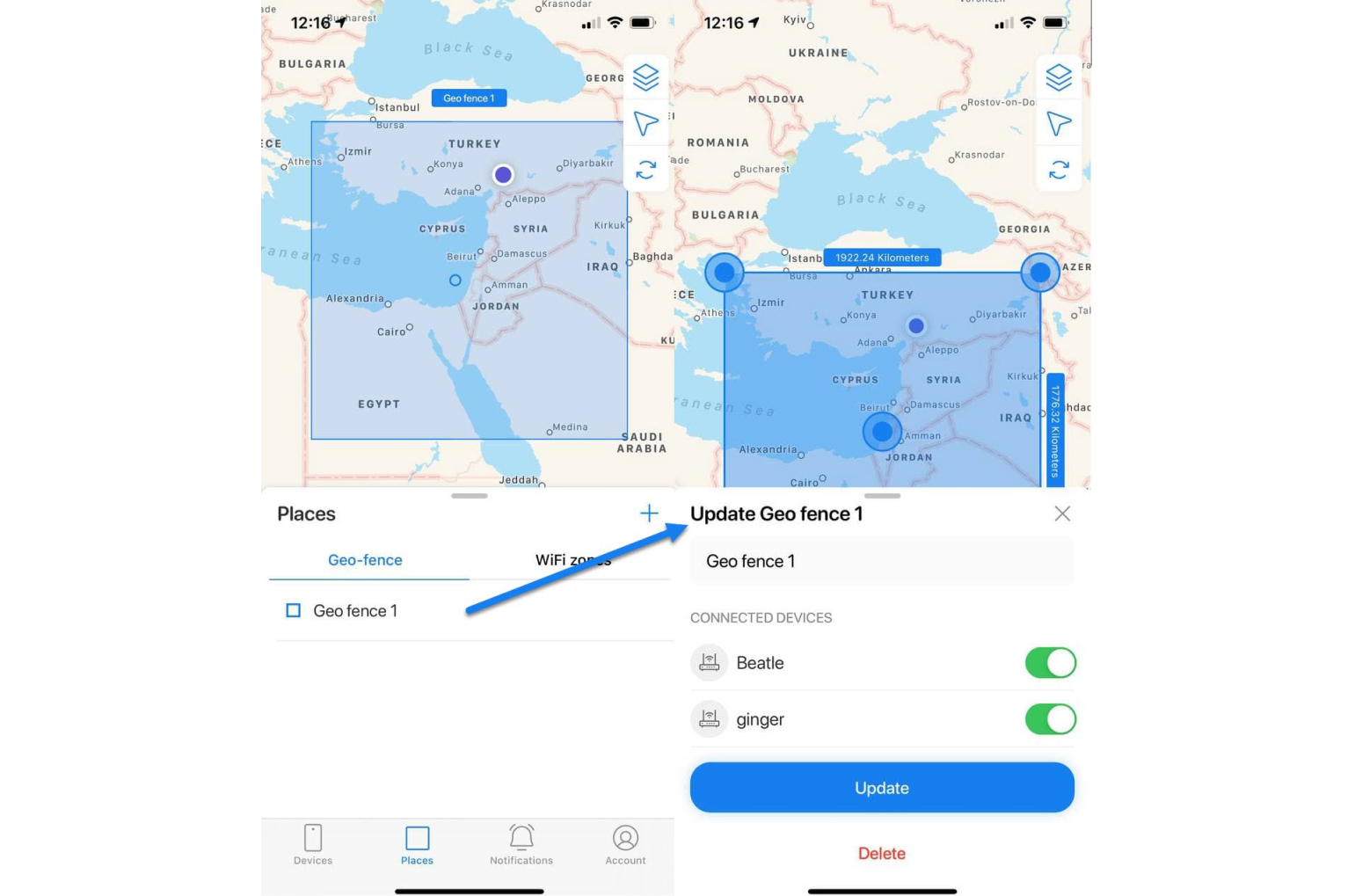
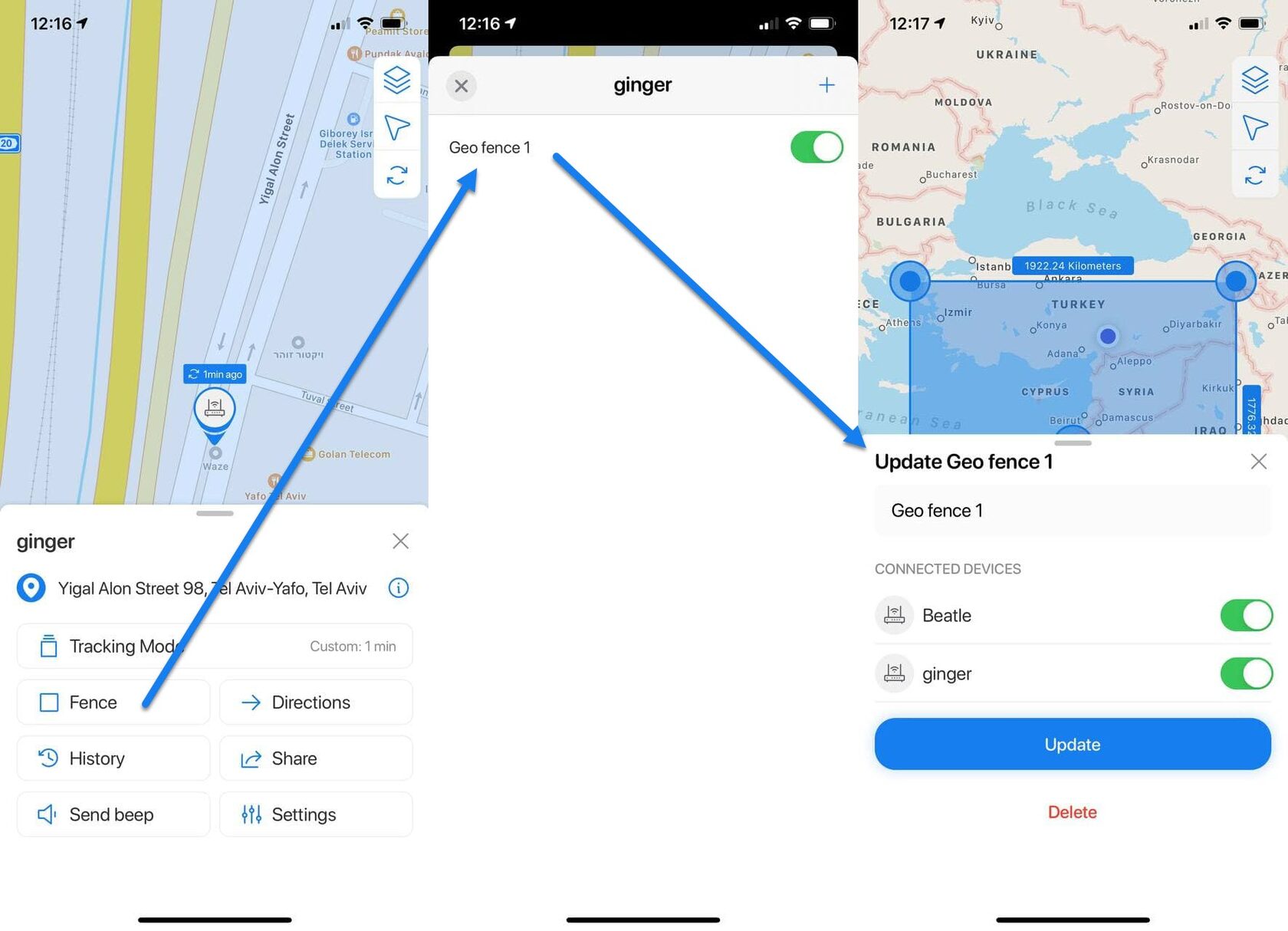
To edit the Geo-fence go to the Places tab or to the Fence in the device's information tab:
1. Tap on the Geo-fence name you want to edit;
2. On the map you can move the blue rectangle to adjust the perimeter;
3. Edit the name of the Geo-fence;
4. Choose the devices you want to apply this Geo-fence to;
5. When done tap on the Update button.
Editing a GeoFence:
To edit the Geo-fence go to the Places tab or to the Fence in the device's information tab:
1. Tap on the Geo-fence name you want to edit;
2. On the map you can move the blue rectangle to adjust the perimeter;
3. Edit the name of the Geo-fence;
4. Choose the devices you want to apply this Geo-fence to;
5. When done tap on the Update button.
 Deleting a GeoFence:
To delete the Geo-fence go to the Places tab or to the Fence in the device's information tab:
1. Tap on the Geo-fence name you want to delete;
2. Tap on the Delete button.
Deleting a GeoFence:
To delete the Geo-fence go to the Places tab or to the Fence in the device's information tab:
1. Tap on the Geo-fence name you want to delete;
2. Tap on the Delete button.